
Read the articles and guides to learn more about DVD copying and DVD ripping
    |

 Popular Topics
- DVD, Blu-ray VS. Streaming
- DVD Movie to Google Nexus 6P
- DVD to Samsung Galaxy S6/S6 Edge
- Rip DVD Movie for Roku 3
- Google Nexus 9 vs Nexus 7
- DVD to iPad Air 2
- DVD to iPhone 6/6 Plus
- Copy and Rip DVD on Yosemite
- DVD to iPhone 5
- DVD to Galaxy S3
- DVD to Galaxy note
- DVD to the new iPad
- DVD to HTC One X
- Burn Avengers DVD to blank disc
- DVD to Huawei Ascend D2/Mate
- DVD to BlackBerry Z10
- DVD to Huawei Windows Phone 8 - Ascend W1
- Copy Skyfall DVD on hard drive
- Convert The Hobbit: An Unexpected Journey to MP4
- DVD to LG Optimus G
- DVD to Phablet Converter
- Nexus 10 vs iPad 4 vs Kindle Fire HD 8.9 vs Samsung Note 10.1
- DVD to Nokia Lumia 920
- DVD to Sony Xperia S
- Backup Top 10 Horror Movies
Articles & Guides
How to remove CSS protection on Mac?
Content Scramble System (CSS) is a Digital Rights Management (DRM) scheme used on almost all commercially produced DVD-Video discs. It utilizes a proprietary 40-bit stream cipher algorithm. The system was introduced around 1996 and has subsequently been compromised.
The CSS key sets are licensed by the DVD Copy Control Association to manufacturers who incorporate them into products such as DVD movie releases, drives & players. Most DVD players are equipped with a CSS Decryption module. CSS key is a collective term for authentication key, disc keys, player keys, title keys, secured disk key set, and/or encrypted title keys.
The purpose of CSS is two fold. First and foremost, it prevents byte-for-byte copies of an MPEG stream from being playable since such copies will not include the keys that are hidden on the lead-in area of the restricted DVD disk. Second, it provides a reason for manufacturers to make compliant devices, since CSS scrambled disks will not play on noncompliant devices. Anyone wishing to build compliant devices must obtain a license, which contains the requirement that the rest of the DRM system be implemented.
DVDSmith Movie Backup for Mac is a free and powerful "DVD Region + CSS Free" utility for backup DVDs to Mac for personal usage. It smartly removes CSS encrypted content form dvd and copy/backup DVD to hard disk. You needn't hack DVD Rom or DVD-R/DVD+RW(flash firmware) which is very dangerous.
Except CSS Encryption, there are many other kinds of DRM, such as Apple FairPlay. iTunes downloaded movies, TV shows, and music videos are strictly protected by FairPlay. Apple FairPlay DRM limits iTunes videos from playing on other non-Apple devices, which brings much inconvenience to iTunes users. Fortunately, there comes Noteburner M4V Converter Plus for rescue. Noteburner M4V Converter Plus (For Winodws / For Mac) is the best iTunes DRM Removal Software for both Windows & Mac users, which can help them to remove the DRM protection from iTunes M4V rentals and purchases to MP4, MOV, AVI, FLV etc formats for playing on TV, game consoles, Android phones/tablets, HD media players and other portable devices.
Remove CSS Encryption from DVDs on Mac
You may have bought lots of favorite DVD movies from your local stores, flea markets, or even online stores, such as eBay and amazon, and you would like to play them on any computers and DVD players. Unfortunely, these DVDs are either CSS encrytped or region codes locked.
To remove encryption (CSS) and region code from your favorite DVDs and copy them to your hard drive, please simply follow instructions below to use DVDSmith Movie Backup:
Step 1. Inserting DVD disc
Insert the DVD disc you want to backup in the DVD-ROM of your Mac, and then you should wait a second for Mac reading the data of the disc.
Step 2. Choosing backup mode
There are two backup modes for you to choose.
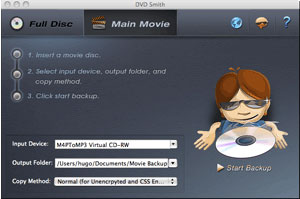
Full Disc: This will backup all contents from the DVD, including main movie, bonus features, and maybe some other extra video clips.
Main Movie: This will only backup the main movie from the DVD, excluding bonus features or other extra video clips.
(Note: see the difference between these two modes)
Step 3. Selecting input device, output folder, and copy method
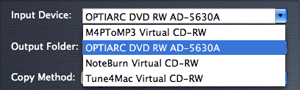
Input Device: select correct DVD device from Input Device dropdown menu.
Output Folder: choose a place that has enough space to store output file.

Copy Method: there are two copy methods for you to choose:

Normal (for Unencrypted and CSS Encrypted DVD):
when Normal copy method is used, the program will focus on scanning the main movie title in a DVD. If there is bad cell in the main movie title, a prompt window will come up asking you to choose Enhanced copy method.
Enhanced (for Encrypted and CSS Encrypted DVD):
when Enhanced copy method is used, the program will try to read out as much titles as it can be detected in a DVD, and it will then copy all detected titles. Particularly, the program is able to identify the main movie during the scanning process, and skip all bad cells during copying process.
It's recommended to use the Enhanced Copy Method to backup the most recent DVD movies like G.I. Joe, especially for Disney DVD movies.
Step 4. Starting backup
When setting finished, click Start Backup button to get it copied on your Mac.

Further Reading: Best DRM Removal You Should Know

If you would like to remove DRM protection from Apple Music and convert them to common audio files, you need the help from Apple Music converter. Apple Music converter is a powerful audio converter that removes DRM from Apple music and convert Apple Music songs in common MP3, AAC, FLAC or WAV format, so that you could play Apple Music songs with your music player more freely. Read more >>



Looking for a Spotify Music converter that could help you download Spotify music for free, then you should not miss this Spotify Music Converter. Spotify Music Converter perfectly helps you convert DRM-ed Spotify music to plain MP3, AAC, FLAC or WAV at 5X faster speed, while at the same time keeping 100% original quality. In this way, users can get rid of the restriction of DRM, enjoy the Spotify music on any of your device offline. Read more >>
Home | About | Legal Notices | Sitemap | Spotify Music Converter | Apple Music Converter | Amazon Music Converter | Tidal Music Converter | Streaming Audio Recorder | Video Enhancer AI | Face Blur AI | Photo Enhancer AI | AI Image Upscale | Streaming Video Downloader | Disney+ Video Downloader | HBOMax Video Downloader | Amazon Video Downloader | Netflix Video Downloader | YouTube Video Downloader | YouTube Music Converter
Copyright © 2005-2023 DVDSmith Inc., All Rights Reserved.