
Read the articles and guides to learn more about DVD copying and DVD ripping
    |

 Popular Topics
- DVD, Blu-ray VS. Streaming
- DVD Movie to Google Nexus 6P
- DVD to Samsung Galaxy S6/S6 Edge
- Rip DVD Movie for Roku 3
- Google Nexus 9 vs Nexus 7
- DVD to iPad Air 2
- DVD to iPhone 6/6 Plus
- Copy and Rip DVD on Yosemite
- DVD to iPhone 5
- DVD to Galaxy S3
- DVD to Galaxy note
- DVD to the new iPad
- DVD to HTC One X
- Burn Avengers DVD to blank disc
- DVD to Huawei Ascend D2/Mate
- DVD to BlackBerry Z10
- DVD to Huawei Windows Phone 8 - Ascend W1
- Copy Skyfall DVD on hard drive
- Convert The Hobbit: An Unexpected Journey to MP4
- DVD to LG Optimus G
- DVD to Phablet Converter
- Nexus 10 vs iPad 4 vs Kindle Fire HD 8.9 vs Samsung Note 10.1
- DVD to Nokia Lumia 920
- DVD to Sony Xperia S
- Backup Top 10 Horror Movies
Articles & Guides
How to convert DVD folder with Handbrake?
DVDSmith Movie Backup is DVD backup software for copying DVD to hard drive as DVD folder. You can use this software in conjunction with DVD burning software of your choice, to make a backup copy of any DVD video disc, or with Any DVD Converter Pro or HandBrake to convert your DVD folder to MP4, AVI, 3GP or other video formats for your iPod, PSP, mobile phones and many portable media players.
DVDSmith Movie Backup can make perfect-quality backup copies of all your DVD movies using your own computer hard disk. It can keep the same sound & video quality when you backup your DVD movies with all the special features, menus, subtitles, and languages included. Within a few clicks of your mouse, your favorite DVD has been cloned and will be playable on your computer with free media players like SMPlayer, The KMPlayer and VLC Media Player and Media Player Classic .
Newly released Movie DVDs like Wall-E, Sleeping Beauty, Iron Man, Disaster Movie, Bangkok Dangerous, can be easily copied to your hard drive with DVDSmith Movie Backup.
If you need to copy movie DVD to DVD disc, please use Any DVD Cloner Platinum. It's an easy-to-use and powerful DVD copying tool!
How to convert DVD folder on hard drive with HandBrake?
HandBrake is a software application that can convert MPEG video (including DVD-Video) into a MPEG-4 video file in .mp4, .avi, .ogm, or .mkv containers. The program is used by many people to convert DVDs into other forms so they can be viewed on iPods, iPhones and with the Mac QuickTime Player. Originally developed for BeOS, HandBrake is now cross-platform, and available for Linux, Microsoft Windows, Mac OS X, and Solaris. As it is released under the terms of the GNU General Public License, HandBrake is free software. HandBrake can be download from HandBrake.fr.
Though HandBrake supports a wide varity of input formats, M4V video format is not included. The M4V file format is a video container format developed by Apple and is very similar to the MP4 format. But M4V files may optionally be protected by DRM copy protection. Noteburner M4V Converter Plus (For Winodws / For Mac) is specially designed to convert iTunes M4V videos. It is a professional and powerful M4V Converter which can remove iTunes DRM and then losslessly converts M4V rentals and purchases to MP4, MOV, AVI, FLV etc formats at fast speed.
HandBrake has both GUI and Command Line version. The Command Line version is only suited for advanced users.
After copying DVD to hard drive as DVD folder with DVDSmith Movie Backup, you can use HandBrake to convert DVD folder on hard drive to video formats for playing on iPod, iPhone, PSP, PS3 and Xbox360. With the help of DVDSmith Movie Backup and Handbrake, you can easily enjoy your DVD Movie on iPod, iPhone, PSP.
Converting DVD folder on hard drive with HandBrake is easy. At first, let's introduce how to convert DVD folder on hard drive with HandBrake GUI version.
Convert DVD folder on hard drive with HandBrake GUI Version.
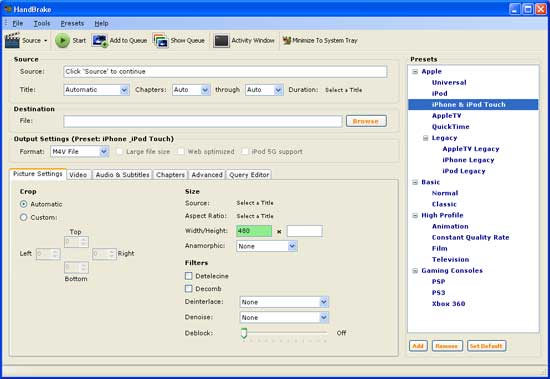
1. Open HandBrake. The main interface is as the picture below.
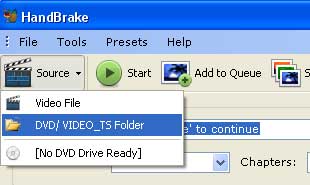
2. Click menu by "Source --> DVD/Video_TS Folder" to add the DVD folder on hard drive to HandBrake.
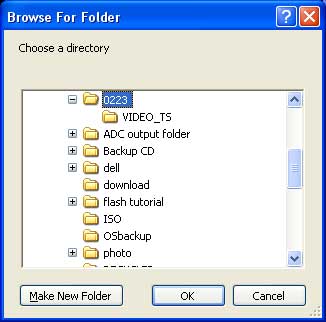
3. Browse for DVD folder on hard drive and click OK.
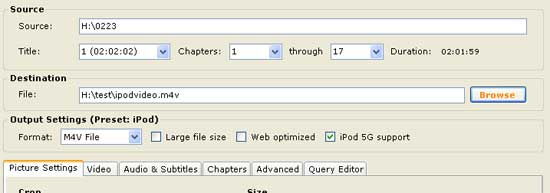
4. Select output format in the right panel and customize the settings. Select a title and specify the chapters you need to convert, set output destination, select output file format. There are six tabs regarding detailed settings such as video size, video codec, framerate, audio, subtitle etc, you need to customise the settings according to your need.
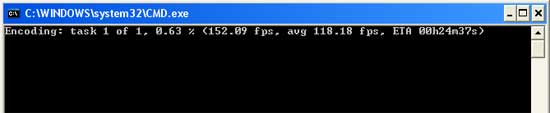
5. Click "Start" button to start converting the DVD folder on the hard drive. A command line window will prompt with encoding percentage and left time. Once the converting process is finished, the command line window will disappear, and you can open the output destination to view the output files.
Convert DVD folder on hard drive with HandBrake Command Line Version.
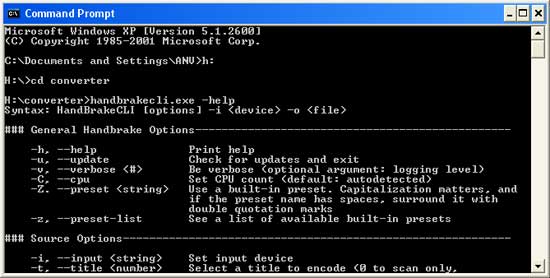
1. Converting DVD folder on hard drive with HandBrake Command Line Version, you need to download the command line version to your hard drive and unzip it. Here, we unzip the command line version to H:\converter. Then open HandBrake with cmd.exe. You can open cmd.exe by Start --> All Programs --> Accessories --> Command Prompt. Turn to the folder where HandBrake locates in (here is H:\converter). Type in handbrakecli.exe -help and you will get all the available commands and chief description of the commands.
2. Now type in the command to convert the DVD folder. Here is a command for example.
handbrakecli.exe -i h:\0223 -t 1 -c 1-2 -o ipodvideo -f mp4 -e xvid -b 800 -E faac -B 192 -w 320 -l 240
The meaning of this command is that: the input source is the DVD folder where locates in H:\0223, we convert the title 1 and chapters from 1 to 2 in this title, the output file name is ipodvideo and the file extention is .mp4, we use the xvid encoder(xvid video codec), the video bitrate is 800kbps, the audio codec is faac and the audio bitrate is 192kbps, the value of video width and height is respectively 320 and 240.

3. Press Enter button to execute the command. There will be detailed information of the DVD folder, such as audio tracks and subtilet tracks, and encoding percentage and left time.
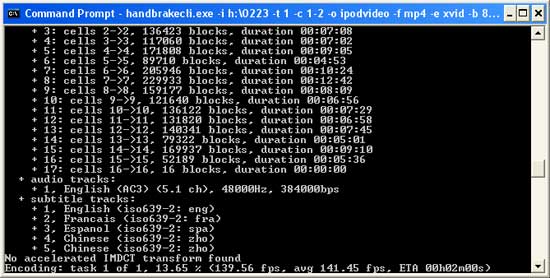
4. Once the ripping is done, HandBrake will exit. And now you can start a new task or close the command prompt.

If you have DVD disc that can't be converted by HandBrake, there may be DVD copy protection in the DVD disc. Don't forget to use DVDSmith Movie Backup to copy DVD to hard drive as DVD folder first, then follow instructions above to convert the DVD folder.
Recommend: Best Apple Music Converter and Spotify Music Downloader

If you would like to remove DRM protection from Apple Music and convert them to common audio files, such as MP3, AAC, WAV or FLAC, you need the help from Apple Music converter. No matter you want to convert DRM-ed iTunes music or Apple Music, audiobooks, Apple Music converter could do them all with 20X fast speed, keeping lossless quality, retaining ID tags. Read more >>



Looking for a tool that could help you download Spotify music for free, then you should not miss this Spotify Music Converter. Spotify Music Converter perfectly helps you convert DRM-ed Spotify music to plain MP3, AAC, FLAC or WAV at 5X faster speed, while at the same time keeping 100% original quality. In this way, users can get rid of the restriction of DRM, enjoy the Spotify music on any of your device offline. Read more >>
Home | About | Legal Notices | Sitemap | Spotify Music Converter | Apple Music Converter | Amazon Music Converter | Tidal Music Converter | Streaming Audio Recorder | Video Enhancer AI | Face Blur AI | Photo Enhancer AI | AI Photo Edtior | AI Image Upscale | Streaming Video Downloader | Disney+ Video Downloader | HBOMax Video Downloader | Amazon Video Downloader | Netflix Video Downloader | YouTube Video Downloader | YouTube Music Converter | Data Loss Prevention
Copyright © 2005-2025 DVDSmith Inc., All Rights Reserved.